Calendar Sync for Appointment Reminders
allora connects to your Google, Apple, or Outlook Calendar, checks for conflicts, and sends an appointment reminder by text - no app required. You can even edit events by text now, too.
Start with 3 days free, then choose annual or monthly pricing.
Calendar Sync
Calendar sync means allora checks your actual schedule before setting an appointment reminder. Connect Google Calendar, Apple Calendar, or Outlook, and allora avoids double-booking you. It finds gaps in your day and suggests better times - without you opening a single app.
Your reminders ignore your schedule
Most reminder tools have no idea what else is on your plate. You set a reminder for 3pm, then realize you have a meeting at 3. allora checks first and suggests a time that actually works.
Creating calendar events takes too many taps
Opening a calendar app, picking a date, setting a time, typing a title - it adds up. With allora, text what you need and it handles the calendar entry. One message instead of six taps.
Calendar and reminders live in different places
Your calendar shows meetings. Your reminder app shows tasks. Neither knows about the other. allora bridges the gap - it reads your calendar and sends reminders to your texts, all in one thread.
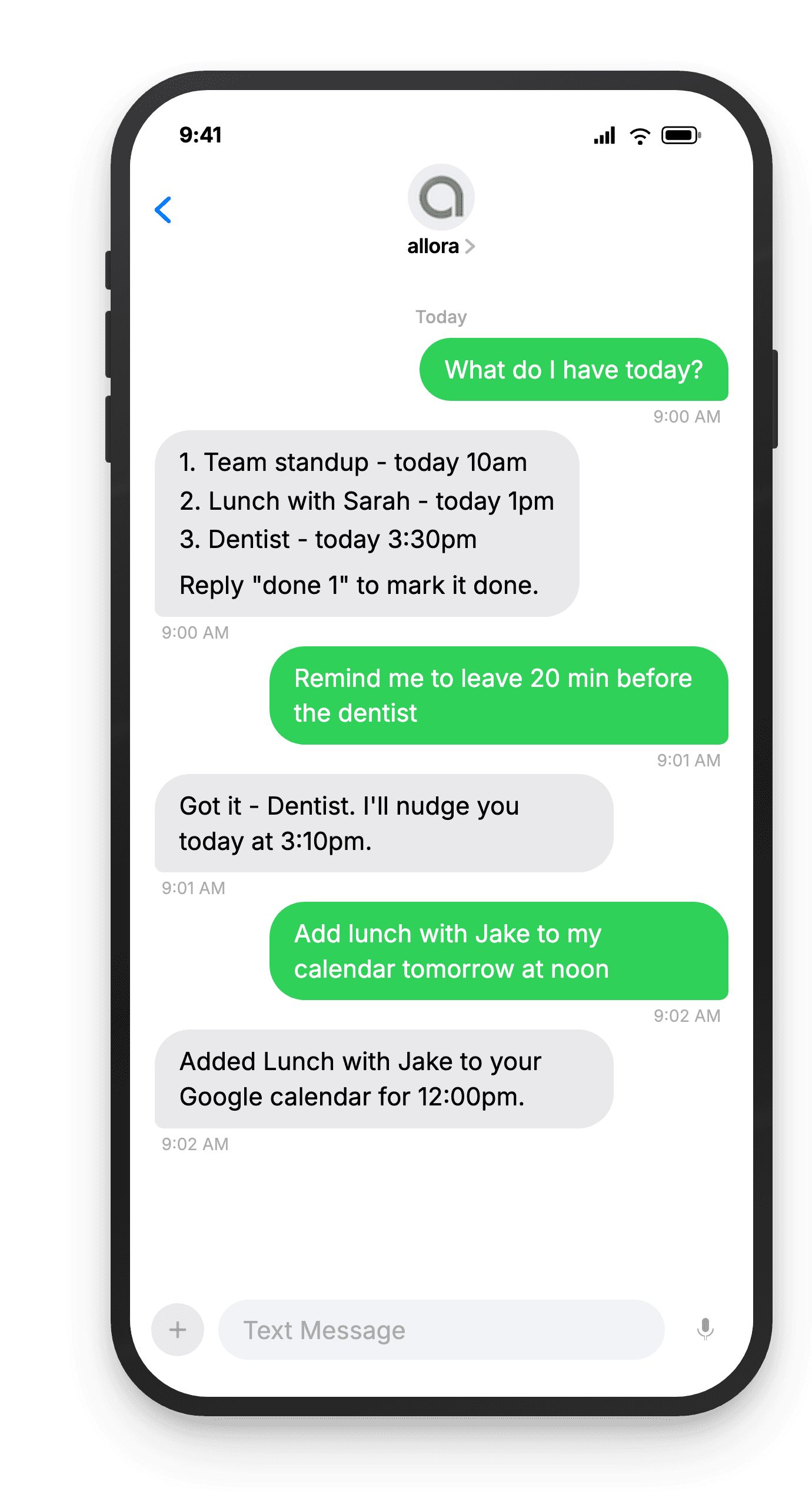
Appointment Reminder
Set a reminder for anything on your calendar - a meeting, a flight, a bill due date - and tell allora exactly how much lead time you want.
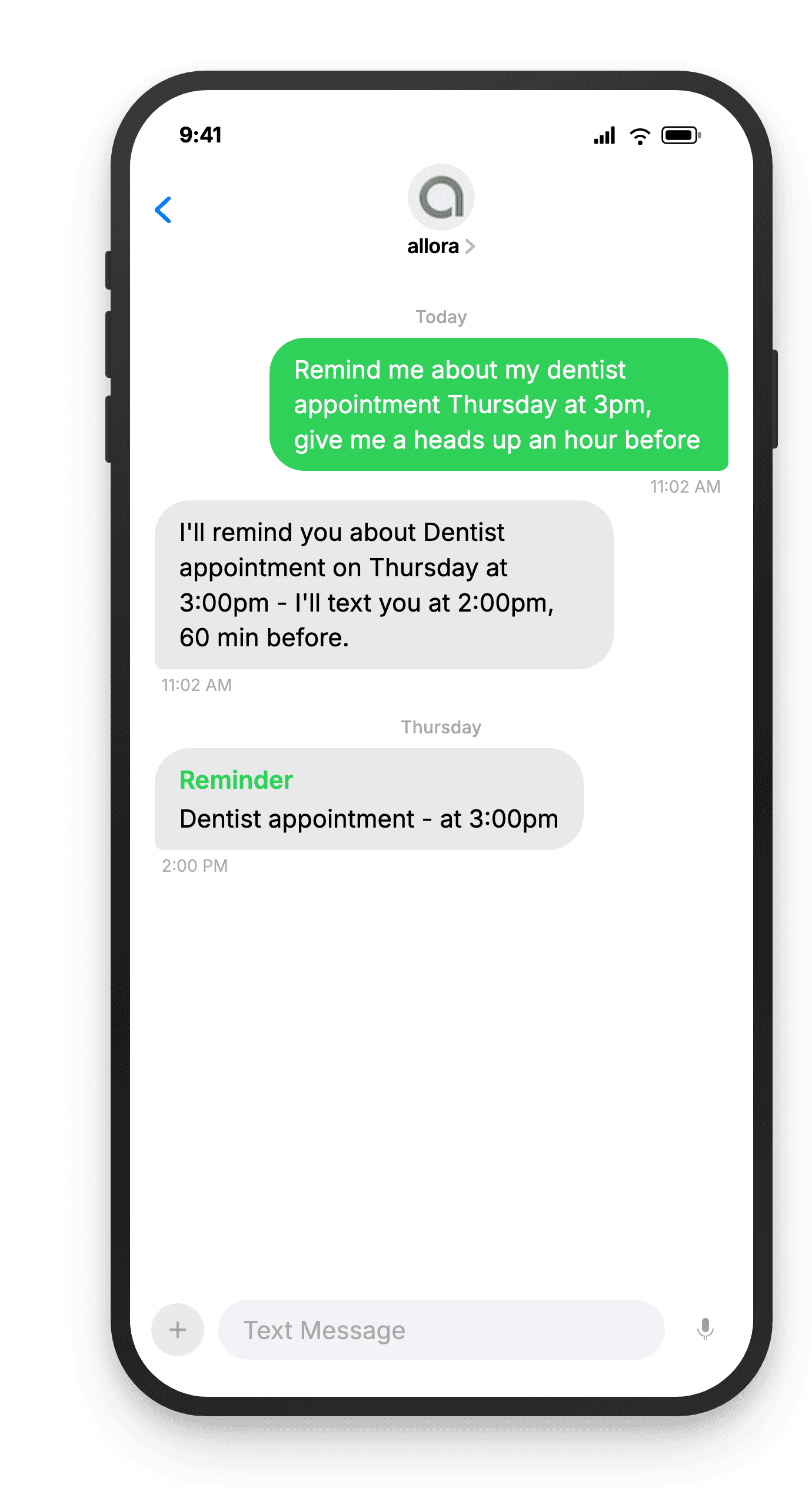
Appointment Scheduling
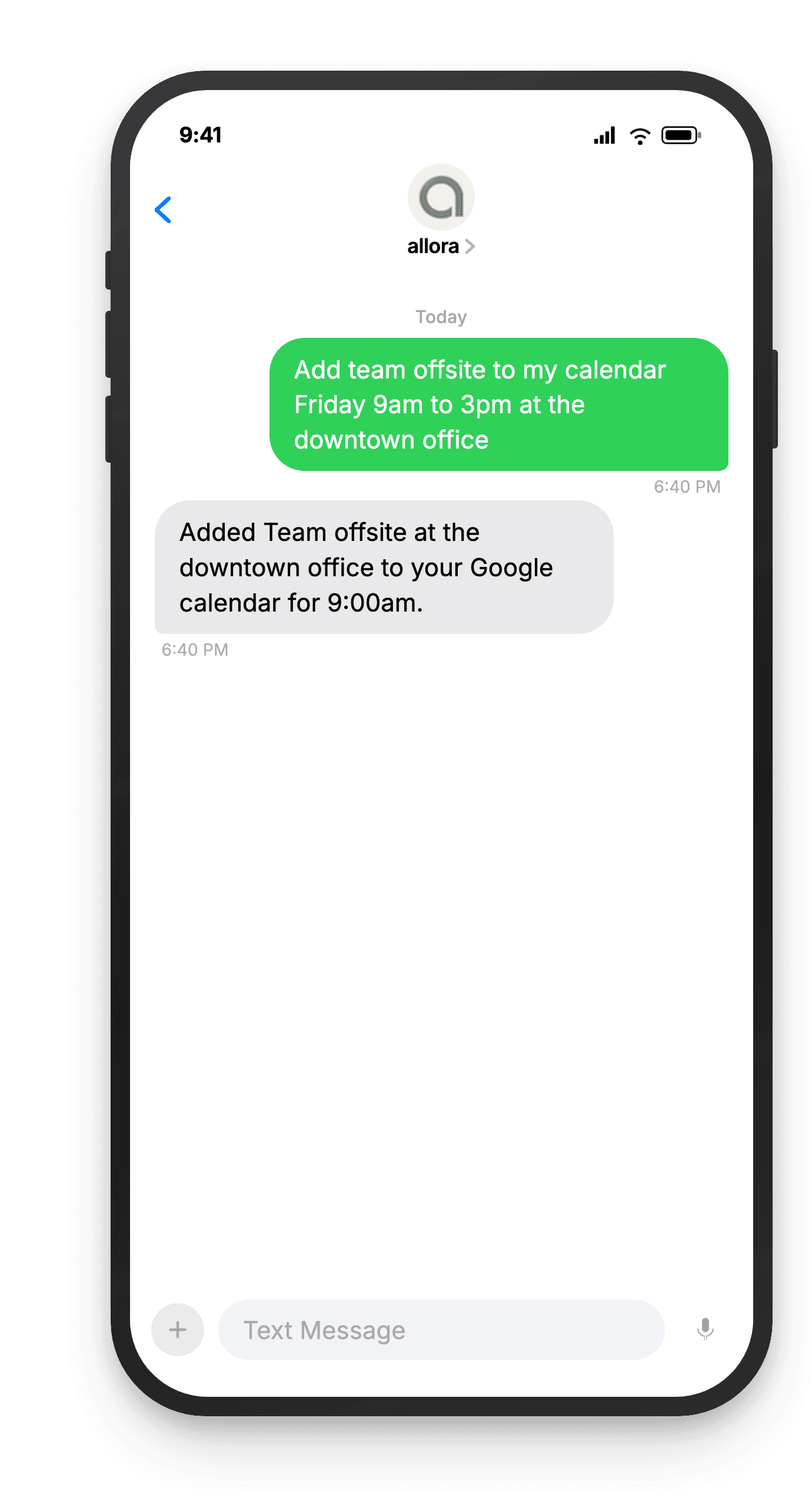
Text an appointment and allora puts it on your calendar. Change your mind? Text the new time and allora moves it - no retyping the whole thing.
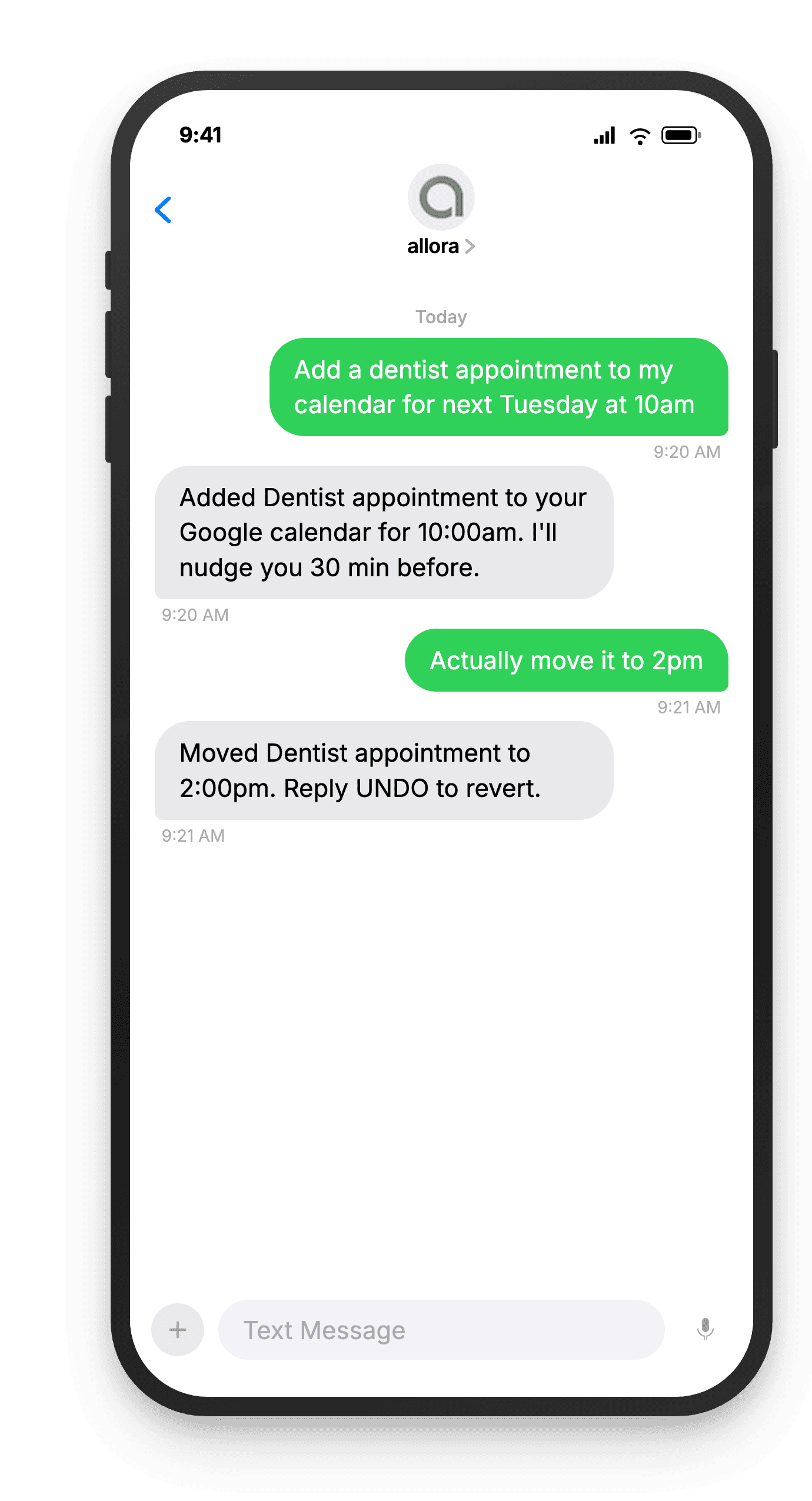
Edit Your Calendar by Text
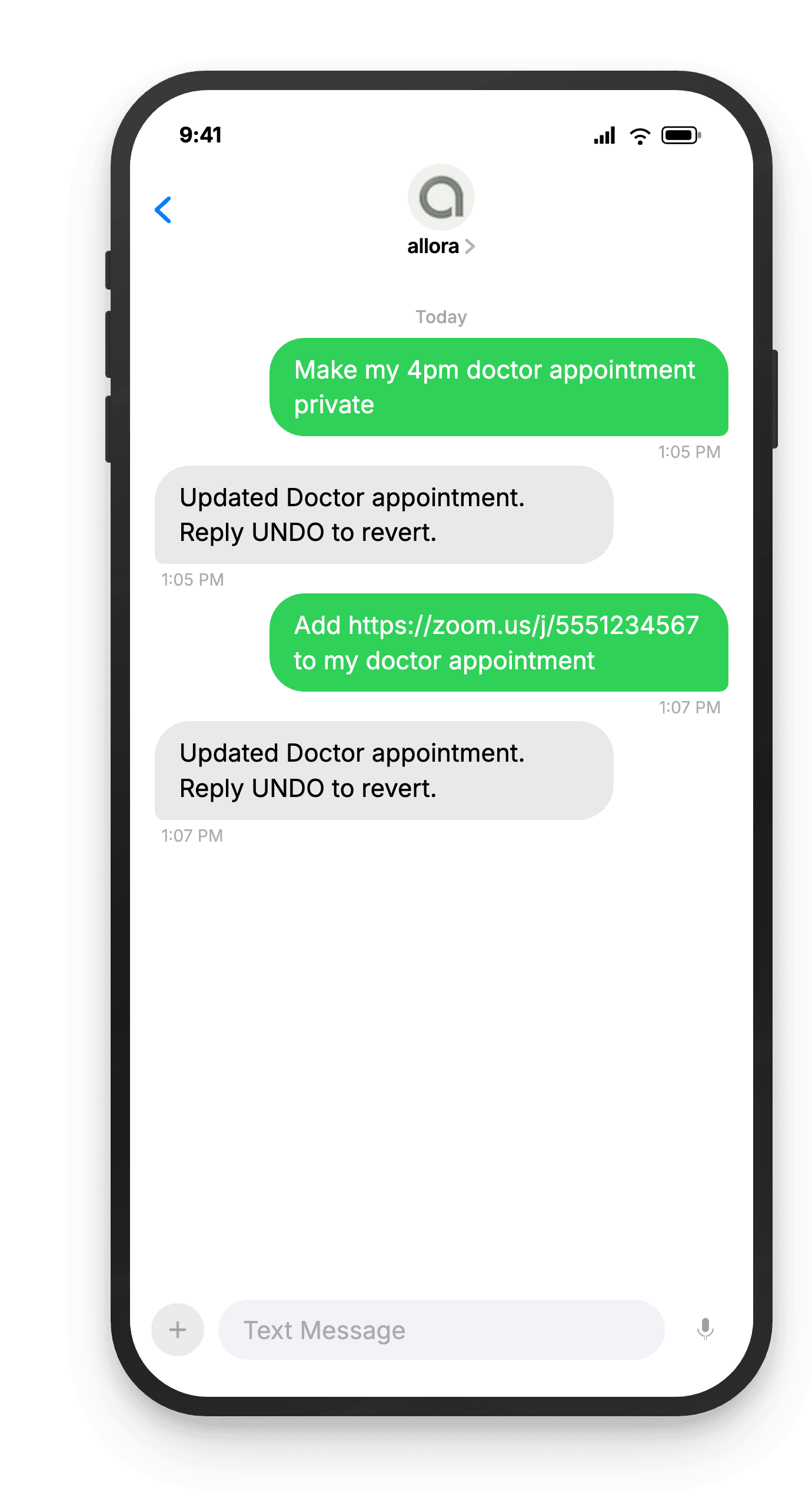
Connecting your calendar used to be one-way - allora could read it, but changing anything meant opening the app. Not anymore. Move a meeting, add a location, mark something private, drop in a Zoom link - all the same way you already talk to allora: text it. Works across Google Calendar, Apple Calendar, and Outlook - connect whichever one you already use.
Move it, rename it, delete it
"Change my dentist appt to 3pm" or "Cancel my 4pm" - allora finds the event and makes the change.
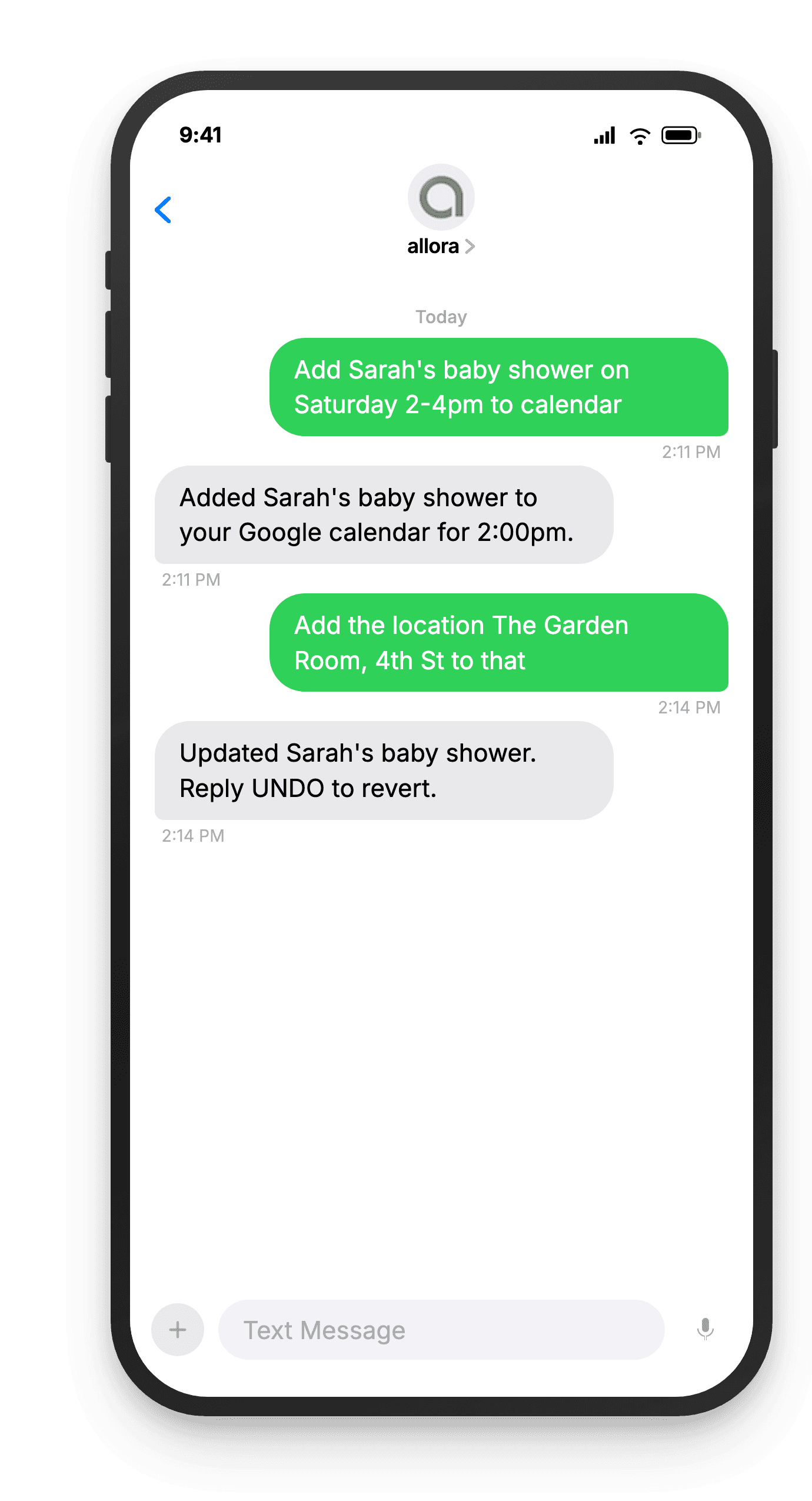
Add details after the fact
A location, a video-call link, a color - update an event without retyping the whole thing.
Undo anything
Change your mind right after? Reply UNDO. No settings menu, no digging through your calendar app.
Manage a calendar with the rest of the household? See how allora works with a shared household calendar.
An AI Calendar You Manage by Text
No forms, no dropdowns - just tell allora what's happening in your own words, and it figures out the date, time, and details.
Ready for reminders that respect your schedule?
Connect your calendar. Text your reminders. allora handles the rest.
Try It FreeWhat allora can do
Everything Else allora Does By Text
allora does more than check your schedule. Here is everything it can do by text.
Text Message Reminders
Set one-time or recurring reminders by texting in plain English. allora texts you back when the moment arrives.
Voice Memos
Send a voice note instead of typing. allora transcribes it and turns it into a task or reminder automatically.
Calendar-Aware Scheduling
Connect Google or Apple Calendar. allora checks your schedule and finds the right time for reminders.
Article & Video Summaries
Send any article URL or YouTube link. allora summarizes it and saves the key points for you.
Notes & Shopping Lists
Text a grocery list or a quick note. allora keeps it organized and sends it back when you need it.
Inspiration Mode
Get daily affirmations, motivational quotes, journal prompts, or sweet messages - on your schedule.
Tasks & Projects
Capture tasks in a text. allora organizes them, tracks progress, and nudges you to keep moving.
Works on Any Phone
No app to download. allora works entirely by text message - iPhone, Android, or any phone that texts.
Calendar Sync & Appointment Reminders - Common Questions
When you sign up at textallora.com, you can connect your Google Calendar or Apple Calendar from your account page. For Google, you sign in with your Google account and grant allora read access. For Apple, you use an app-specific password. allora only reads your schedule to check for conflicts - it never modifies your existing events without your permission. The connection takes about thirty seconds and you only need to do it once. You can disconnect at any time from the same account page.
When you set a reminder that overlaps with a calendar event, allora tells you about the conflict and suggests an alternative time. For example, if you ask for a 3pm reminder but have a meeting from 2:30 to 3:30, allora might suggest 3:45 PM instead. You can accept the suggestion, keep the original time, or reply with a different time entirely. allora never silently moves your reminder - it always tells you what it found on your calendar and lets you decide. This way you stay in control while avoiding scheduling collisions.
Yes. allora supports Google Calendar through standard OAuth sign-in and Apple Calendar through iCloud with an app-specific password. You can connect one or both. If you have multiple Google accounts, you can connect each one separately. allora checks all connected calendars when looking for conflicts, so you get a complete picture of your availability. The setup process is slightly different for each - Google uses a familiar sign-in flow while Apple requires generating an app-specific password from your Apple ID settings. Both take under a minute to complete.
Yes, if you grant write access. When you connect Google Calendar, you can choose read-only or read-write permissions. With write access, allora can add events for reminders and tasks directly to your calendar. This means your allora reminders show up alongside your other calendar events. You can also ask allora to create a calendar event by text - just say what it is and when. If you prefer allora to only read your calendar and never write to it, the read-only option works perfectly for conflict detection without any changes to your schedule.
allora reads your event's time, title, location, description, attendees, and conferencing links when you connect a calendar - that's what lets it check for scheduling conflicts and, if you ask, update details like an event's location or add a video-call link. None of this is shared with third parties or used for advertising, and allora only writes changes to your calendar when you explicitly ask it to. You can revoke access anytime from your allora account page or directly from your Google, Apple, or Microsoft account settings.
Yes. You can connect multiple Google Calendar accounts and an Apple Calendar account to the same allora profile. This is useful if you have separate calendars for work and personal life. allora checks all connected calendars when evaluating conflicts, so it sees your full schedule. You can also enable or disable specific sub-calendars within each account - for example, you might want allora to check your work calendar and personal calendar but ignore the holidays calendar. Managing these settings takes a few taps on your account page.
You can disconnect any calendar from your allora account page at textallora.com. Click the disconnect button next to the calendar you want to remove. allora immediately stops accessing that calendar and deletes the cached event data. Your existing reminders continue to work - they just will not check that calendar for conflicts anymore. You can also revoke access from your Google Account settings or Apple ID settings independently. If you reconnect later, allora syncs your calendar fresh. Disconnecting does not affect any tasks, reminders, or other data you have stored in allora.
Yes. Connect your Google Calendar or Apple Calendar from your account page, and allora can text you an appointment reminder ahead of anything already on it - no separate app or setup required. Because calendar sync means allora checks your schedule before scheduling new reminders, your appointment reminder never overlaps with something else you have going on. You control how far ahead you get the text, and you can disconnect the calendar at any time without losing your existing reminders.
allora works perfectly without any calendar connected. Calendar sync is an optional feature that adds conflict detection - it is not required for reminders, tasks, lists, or any other feature. Without a calendar, allora sets reminders at whatever time you request and uses smart defaults when you do not specify a time. Many users start without calendar sync and add it later. If you decide to connect a calendar down the road, allora immediately starts checking your schedule for new reminders. Nothing changes about how you text allora - the calendar runs quietly in the background.
Yes. Once your calendar is connected, you can ask allora to move, rename, or delete an event, add or change its location, mark it private or public, add a video-call link, change its color, or create a brand-new calendar - all by texting what you want changed. allora finds the event, makes the change, and confirms what it did. If you change your mind, reply UNDO right after and it reverts.
Yes. Text allora the appointment - what it is, the date, and the time - and it is added straight to your connected Google or Apple Calendar. Need to change it? Text the new time and allora moves it. No app, no calendar interface, no retyping the details.
allora is not a calendar app you open - it is an AI you text. It reads what you write in plain language, like "lunch with Sarah Thursday at noon," and turns it into a real event on the calendar you already use, with the date, time, and details filled in. You never see a calendar interface unless you want to.